Loading Screen & In-Game Gallery

ShowCase
General Features
- Menu Access: Players can open the image gallery directly from the ESC menu if you are using the
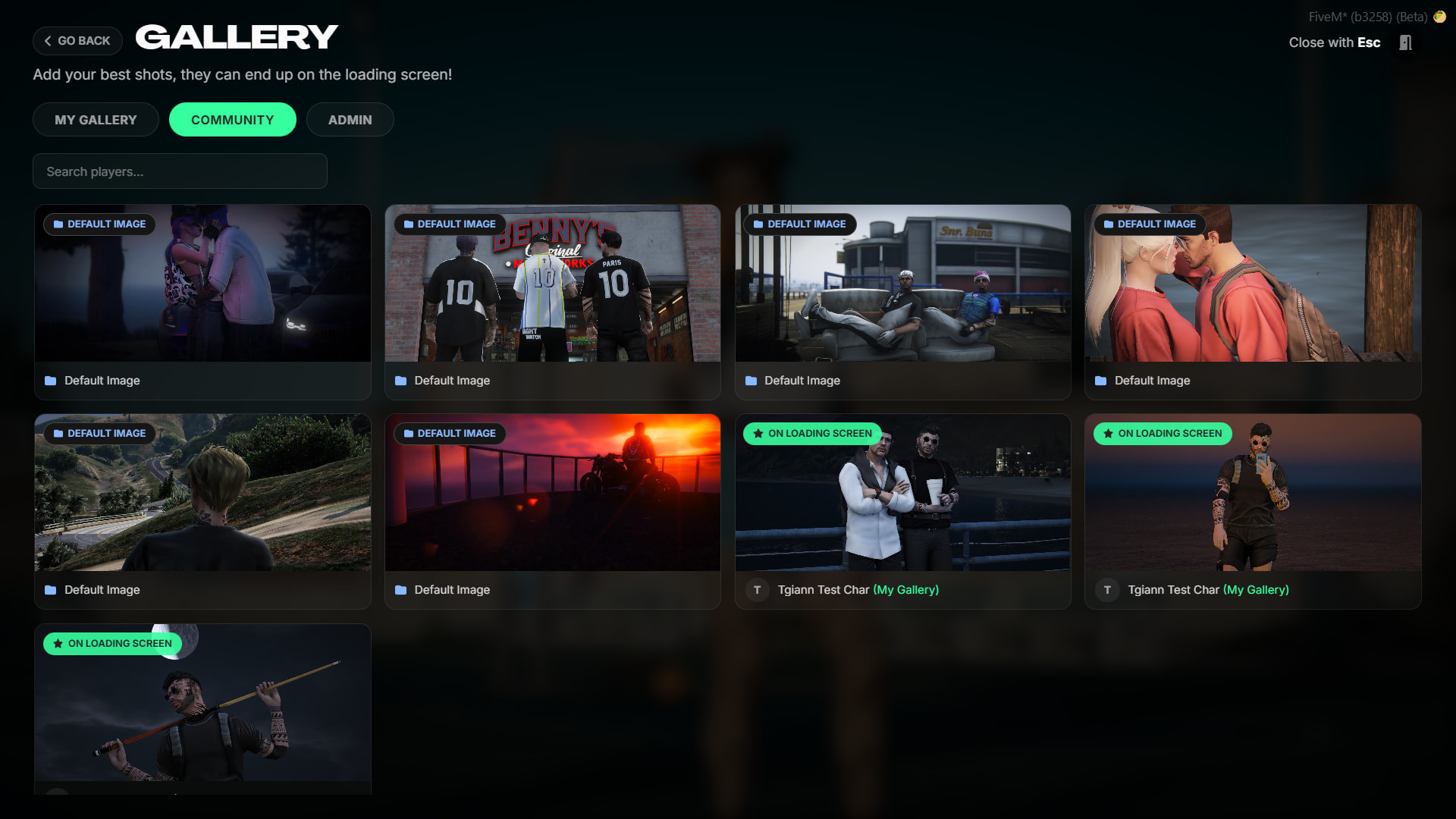
tgiann-escscript, or by using the/gallerycommand if you are not. - Community & Personal Gallery: Players can browse all shared images from the “Community” tab and upload new ones via the “My Gallery” tab.
- Admin Approval System: Uploaded images can be set to appear directly in the community tab, or you can require them to pass through admin approval first by enabling the “Admin Approval” setting in the config.
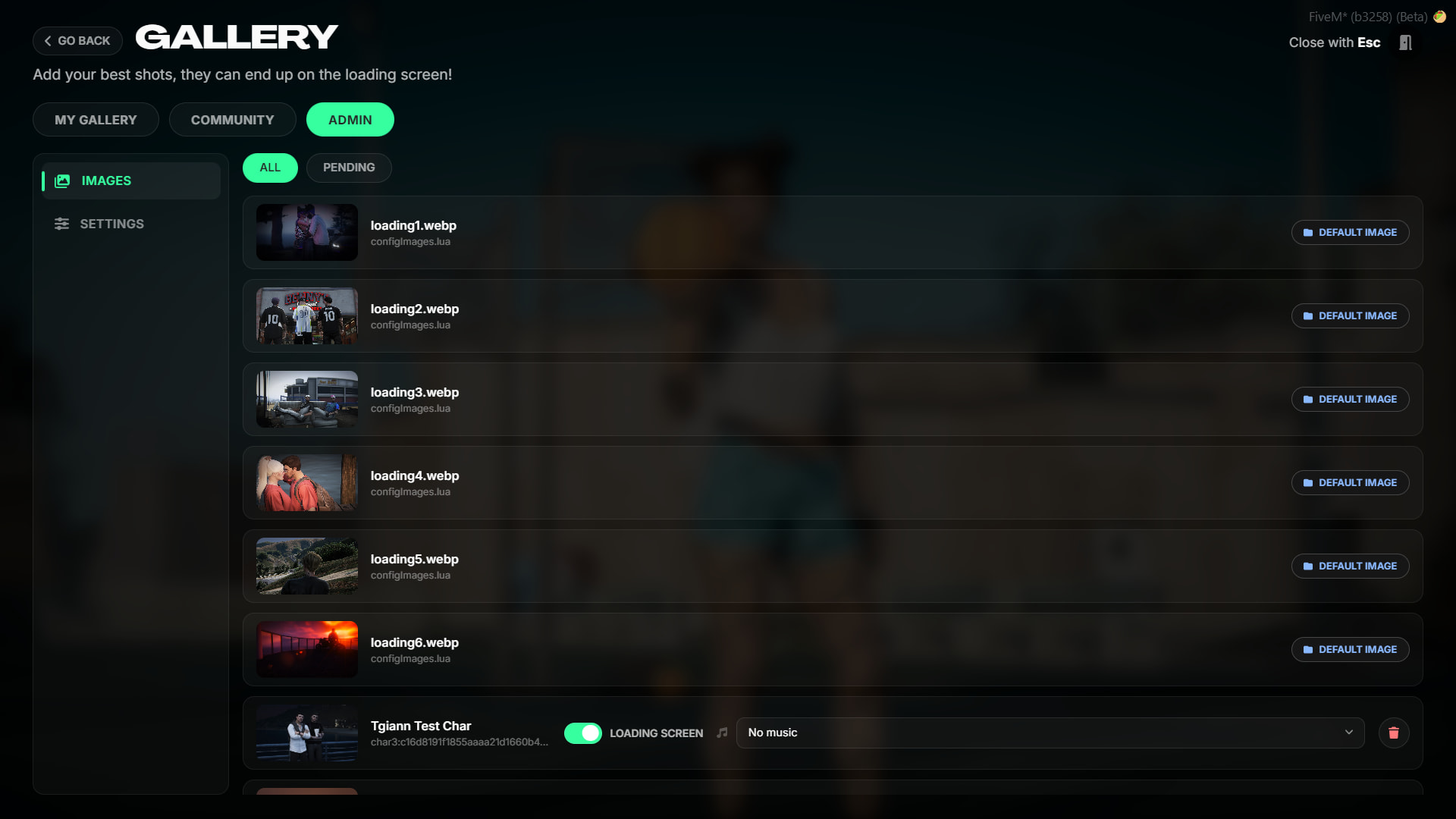
- Admin Management Tab: From the admin panel, you can view all images that have been shared or added via the config, and handpick which ones you want to display on the loading screen.
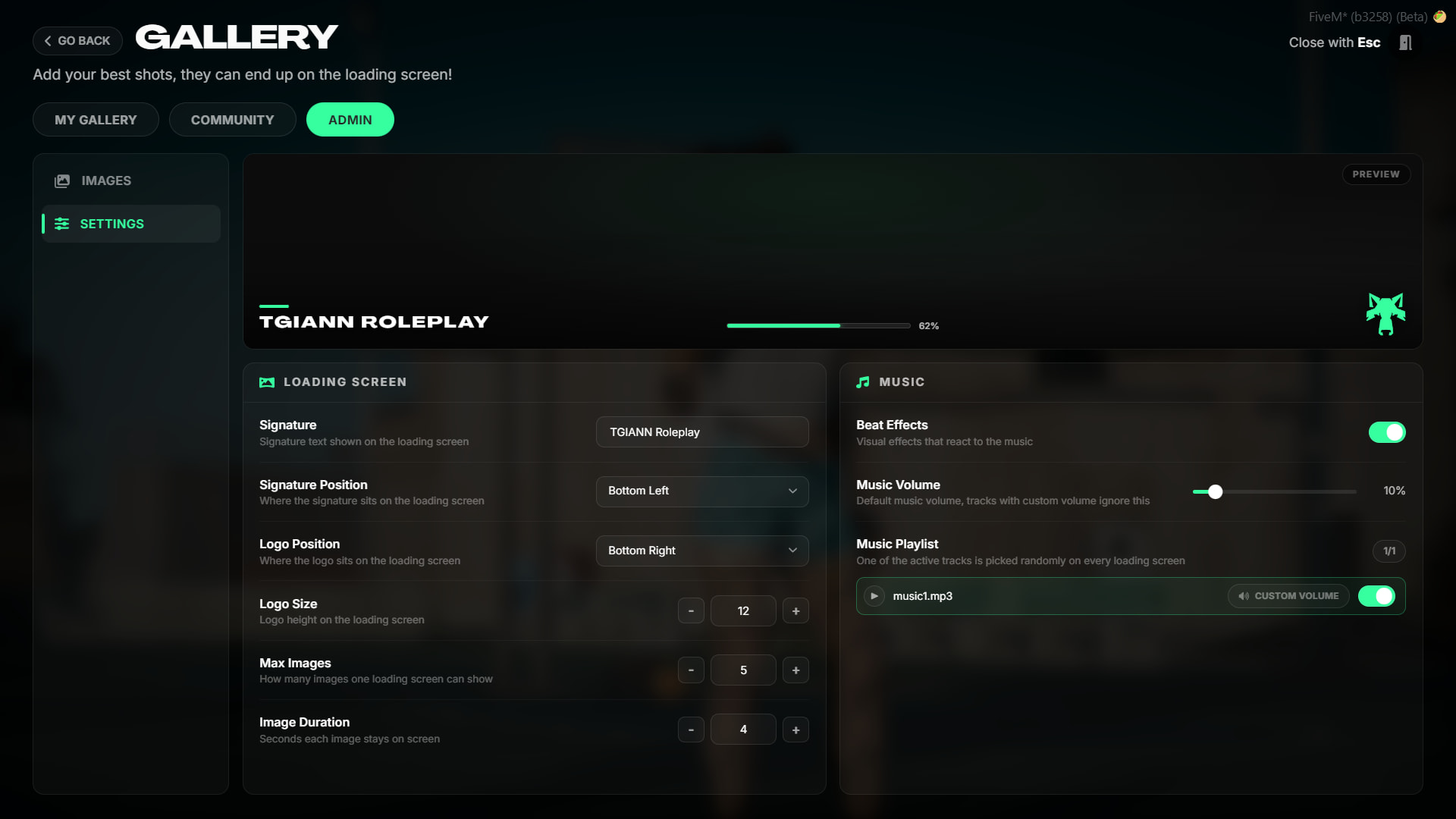
- In-Game Live Customization: You can easily change various loading screen settings directly through the admin panel. This includes making live adjustments to the bottom-left text and its position, as well as the logo’s position and size.
- Sound & Music Management: You can instantly test the volume levels of the music set in your config and assign separate, customized volume levels for each individual track.
- Dynamic Music Playback: The music selected and configured for the loading screen plays randomly upon every login, ensuring your players are greeted with a fresh experience every time they connect.
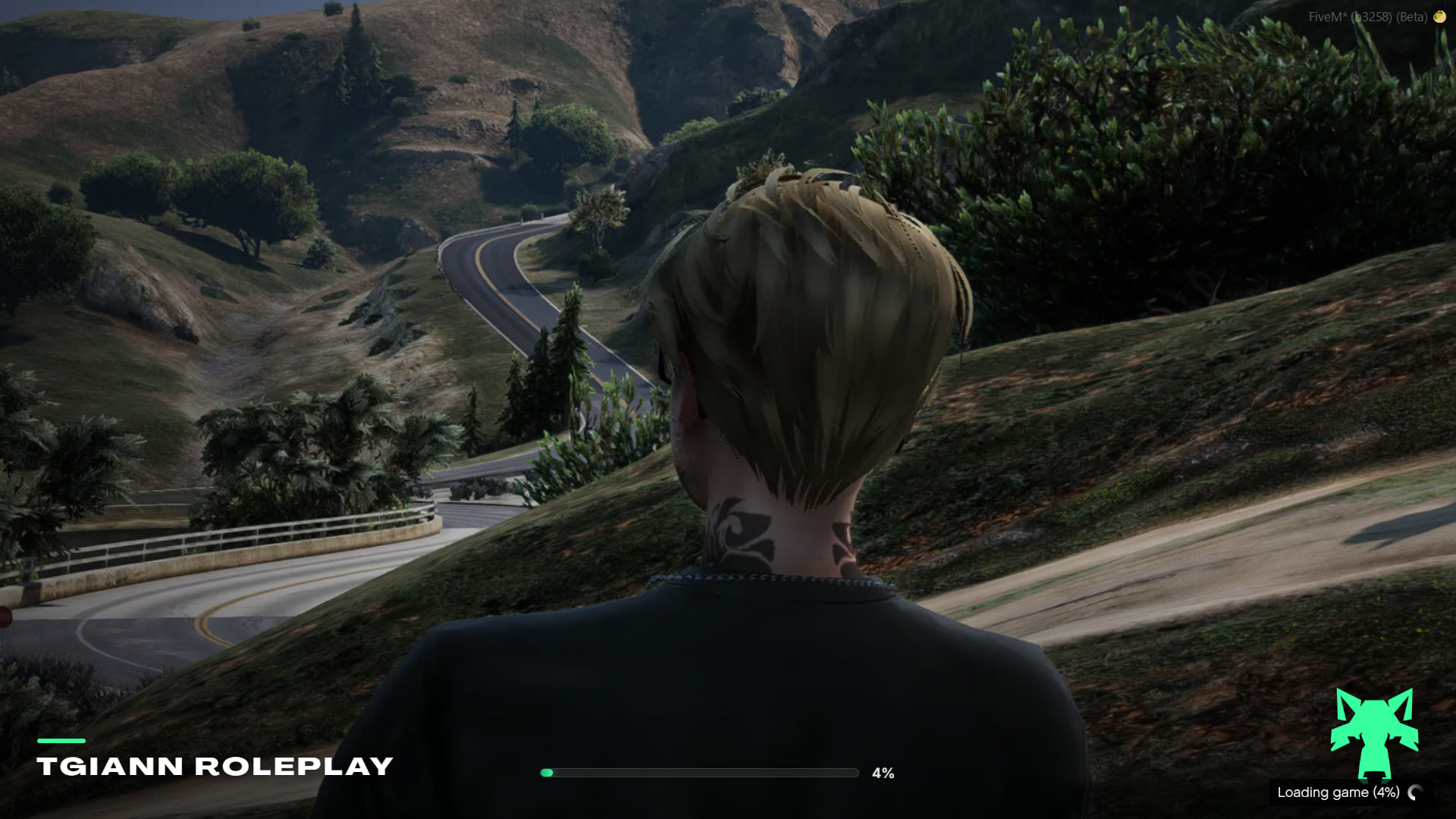
Loading Screen
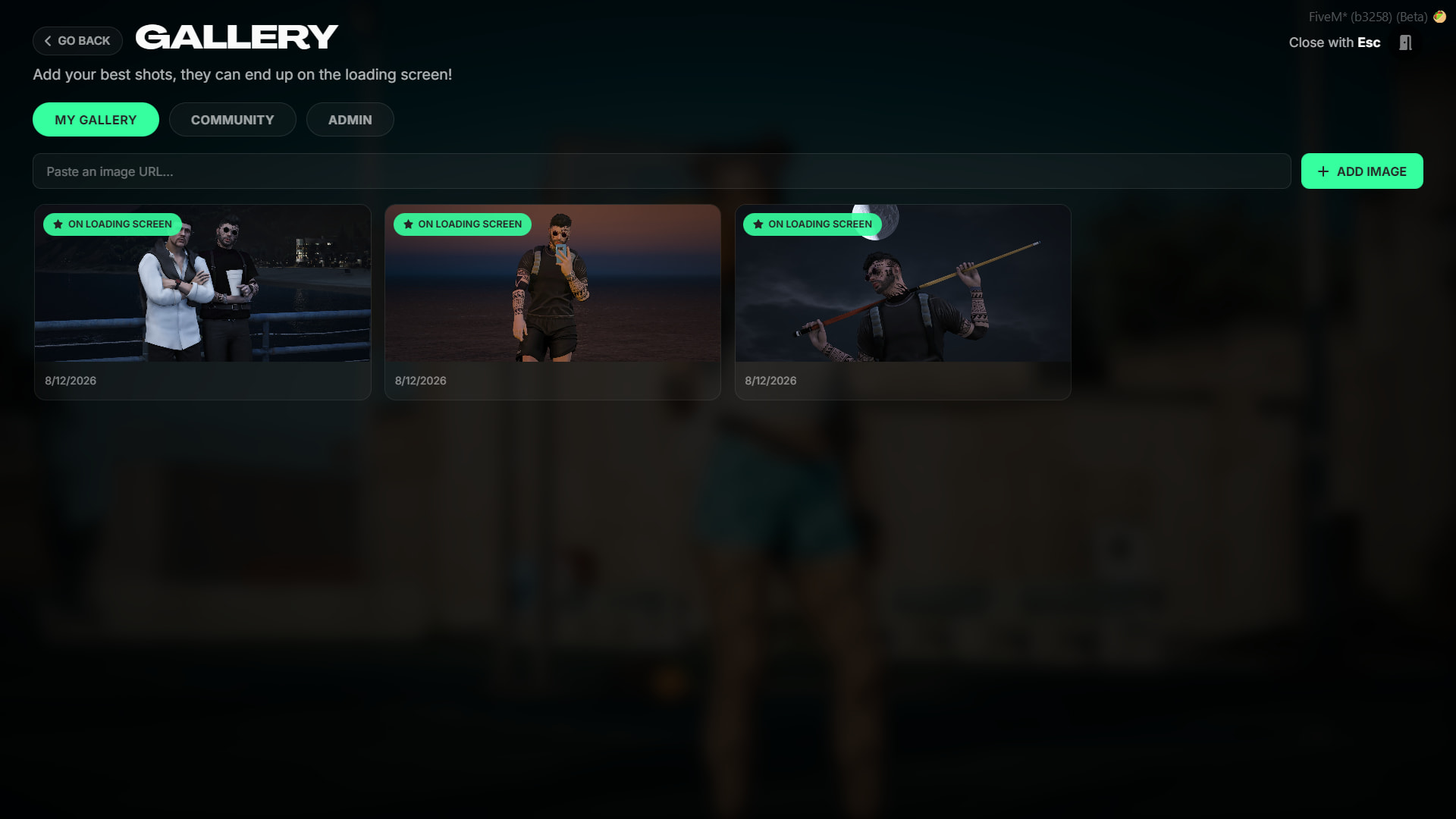
My Gallery Tab
- The player adds images to the gallery from here and views the ones they have added.
Community Tab
- The screen displaying images uploaded by all players.
Admin Tab
- You can configure all settings related to the loading screen via this panel and approve the images uploaded by players here.