Emotes Menu (Animation)
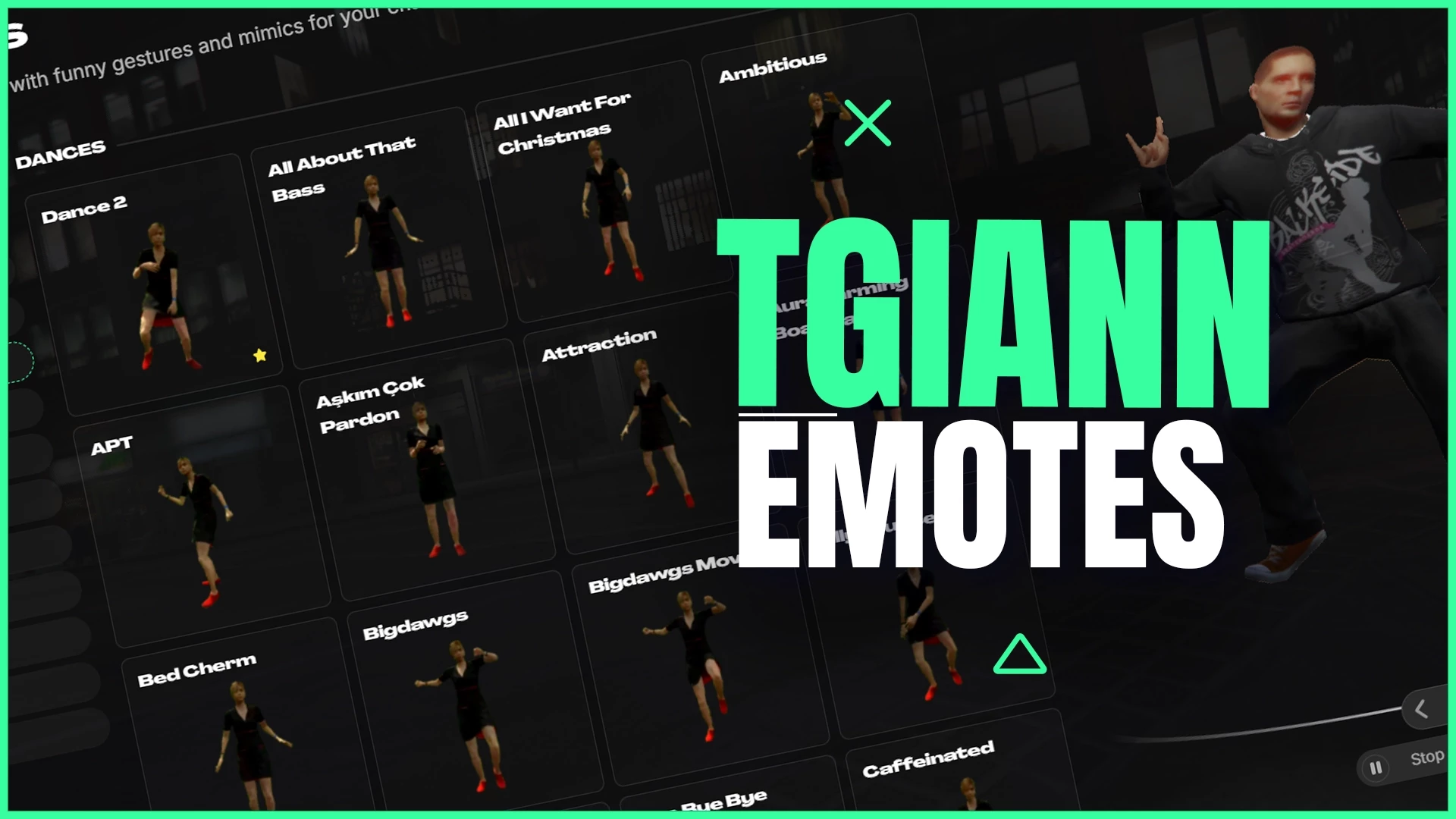
ShowCase
Main Features – FiveM Animation Menu
- Automatic Animation Converter:
Convert animations from other menus (such as RP Emotes–style scripts) into a fully compatible format with a single click. - Pazeee Animation Support (Default):
All Pazeee animations are pre-added in the default configs.
If you own Pazeee’s animation pack, they automatically appear in the UI. - Two Different Animation Wheel Designs
- Two Different Main Menu Designs
- Unlimited Animation Wheel Pages
- Play Shared Animations as Solo Animations
- Play Any Animation as Shared With Another Player
- Dance System With Music:
Add music to dance animations. Other players can join the dance or play it solo. - Complete Animation Categories:
Includes walking styles, shared animations, prop animations, dances, and more—everything you expect from a full animation menu. - Favorites System:
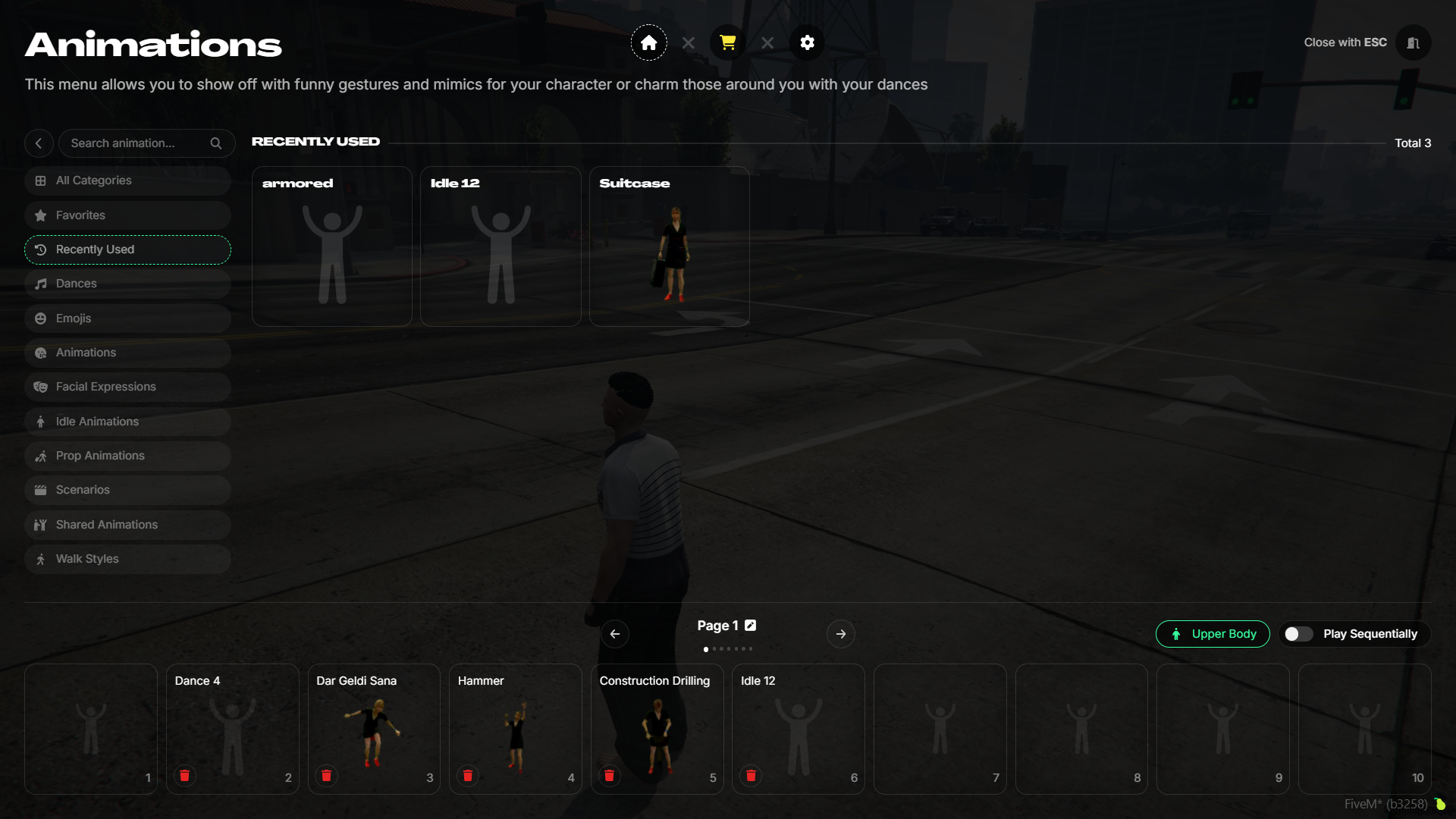
Add or remove animations from your favorites list. - Recently Used Animations List
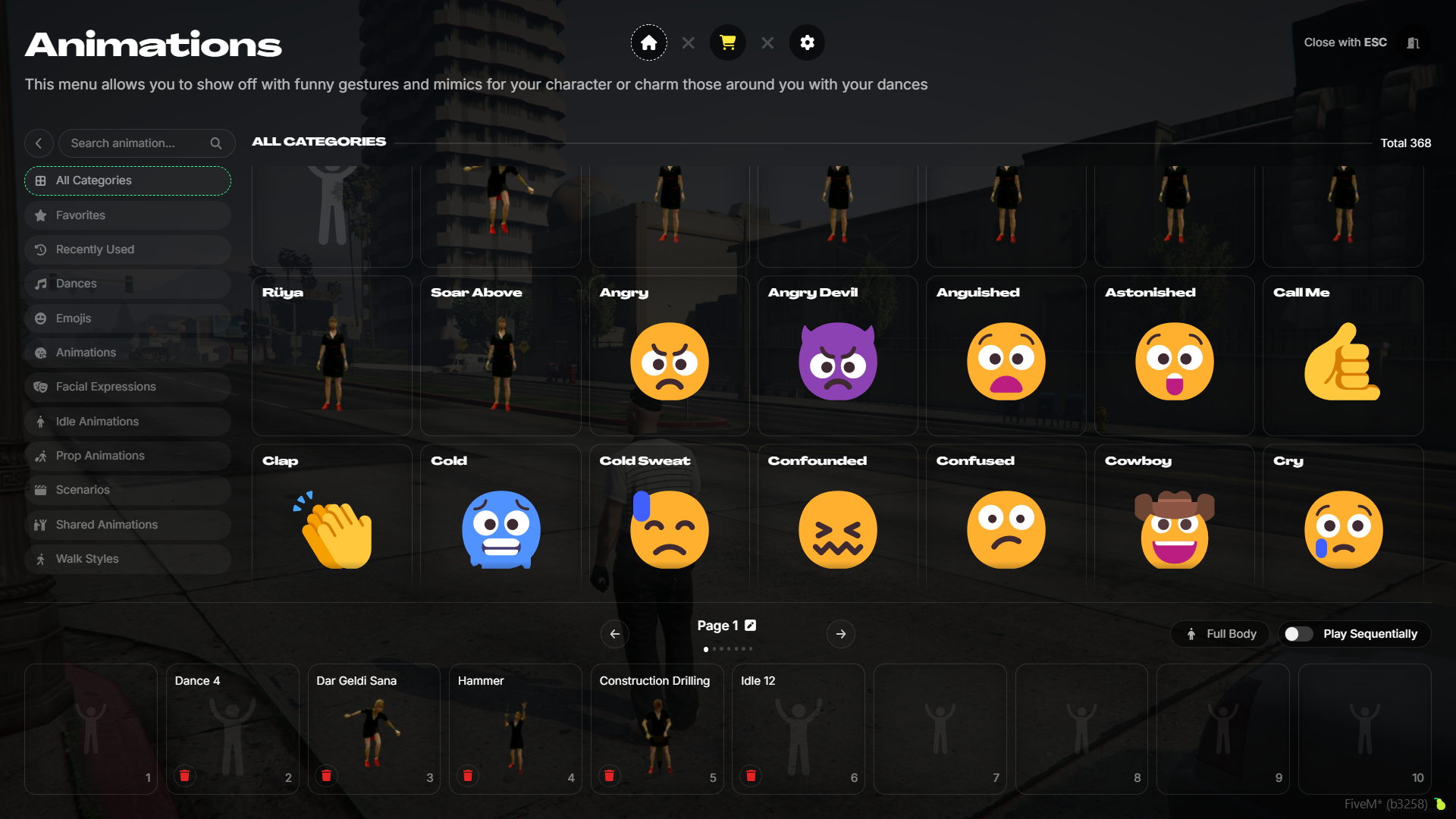
- Preview Animations in the UI:
Try and view animations directly in the UI without playing them in-game. - Market System
- Toggle Abusable & Adult Animations:
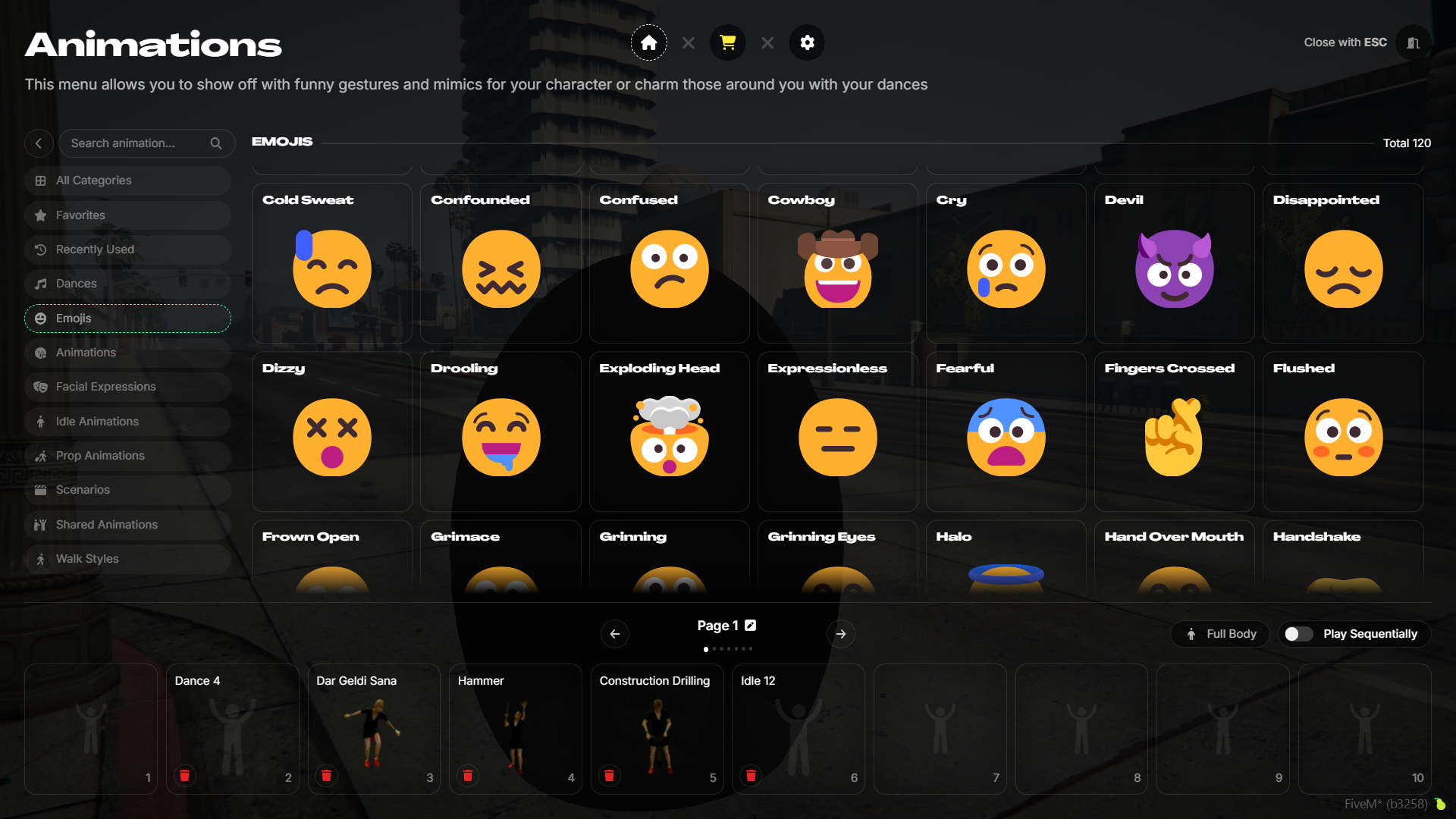
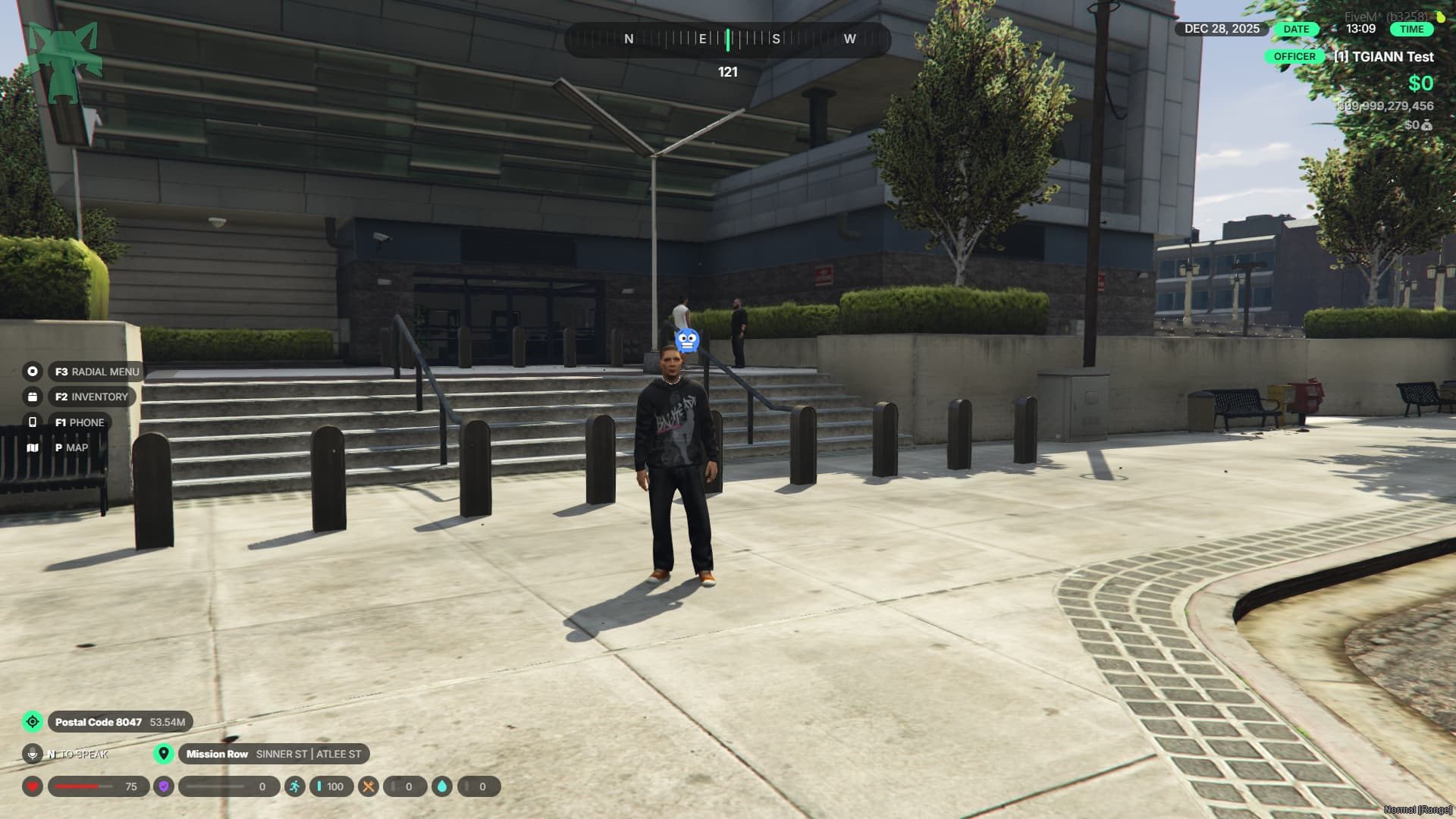
Enable or disable abusable/adult animations directly from the settings. - Emoji Support
- Hands Up Feature
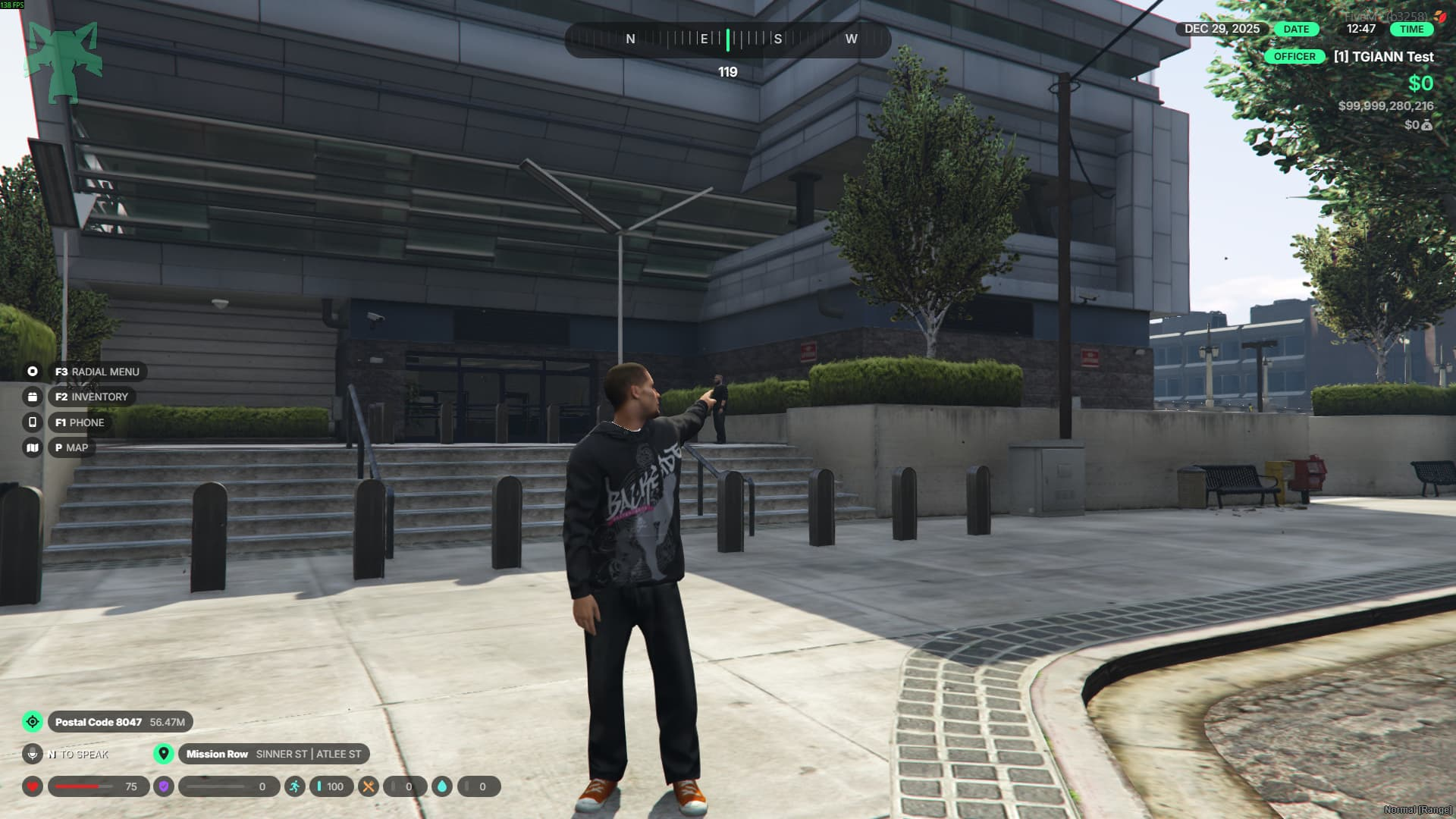
- Pointing Feature
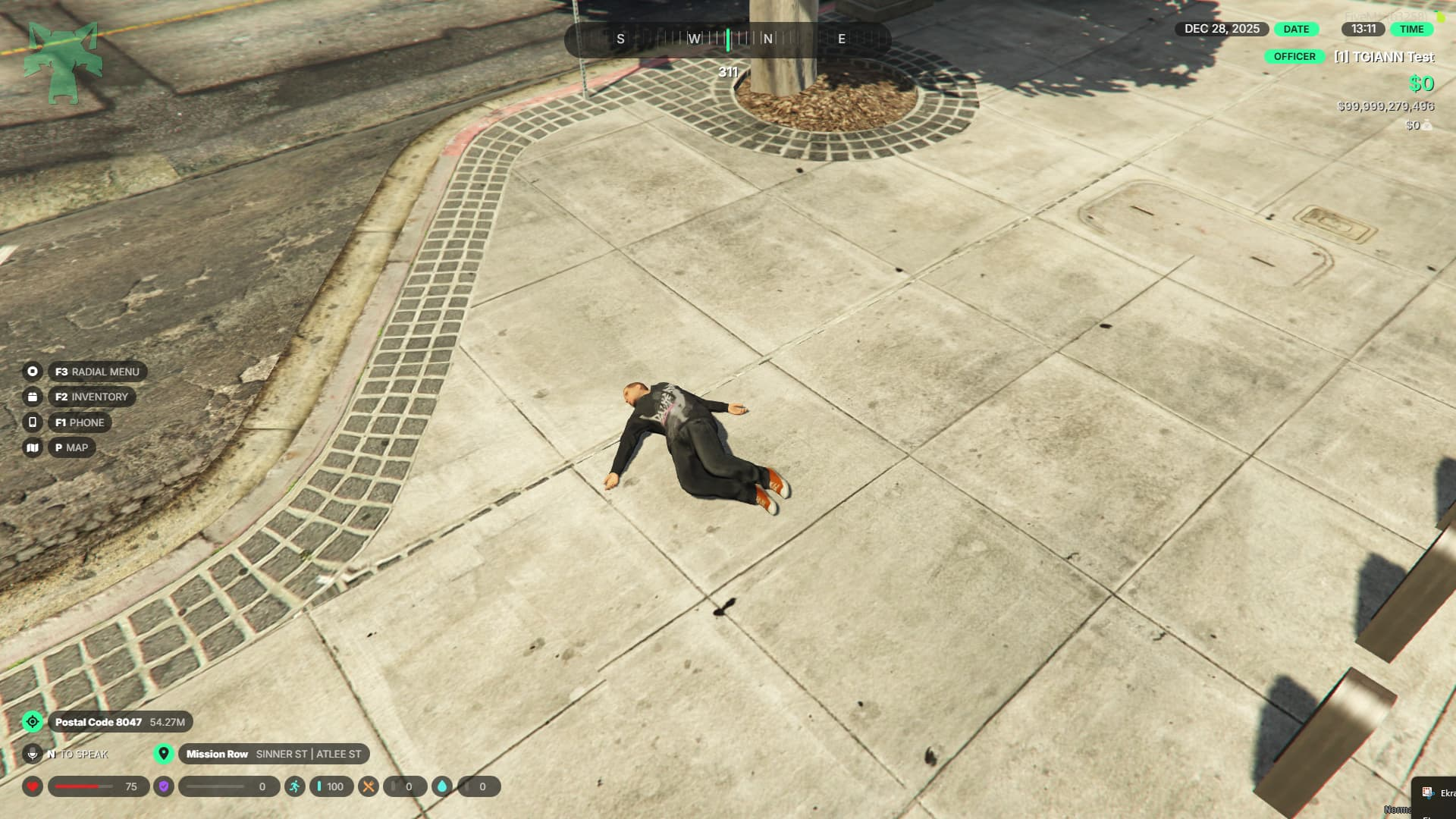
- Ragdoll Feature
- Keyboard Shortcuts:
Use animations from the emote wheel via configurable keybinds. - Slash Command Support:
Trigger animations using chat commands. - Exit Animations
- Idle Animations
- Damage Lock System:
After taking damage, players are prevented from using animations for a short time. - GIF-Based Animation Previews:
All animations include GIF previews in the UI, with an automatic GIF generation system. - Sequential Animation Mode:
Automatically play emote wheel animations in sequence with configurable time intervals.
Converting Animations from Other Menus
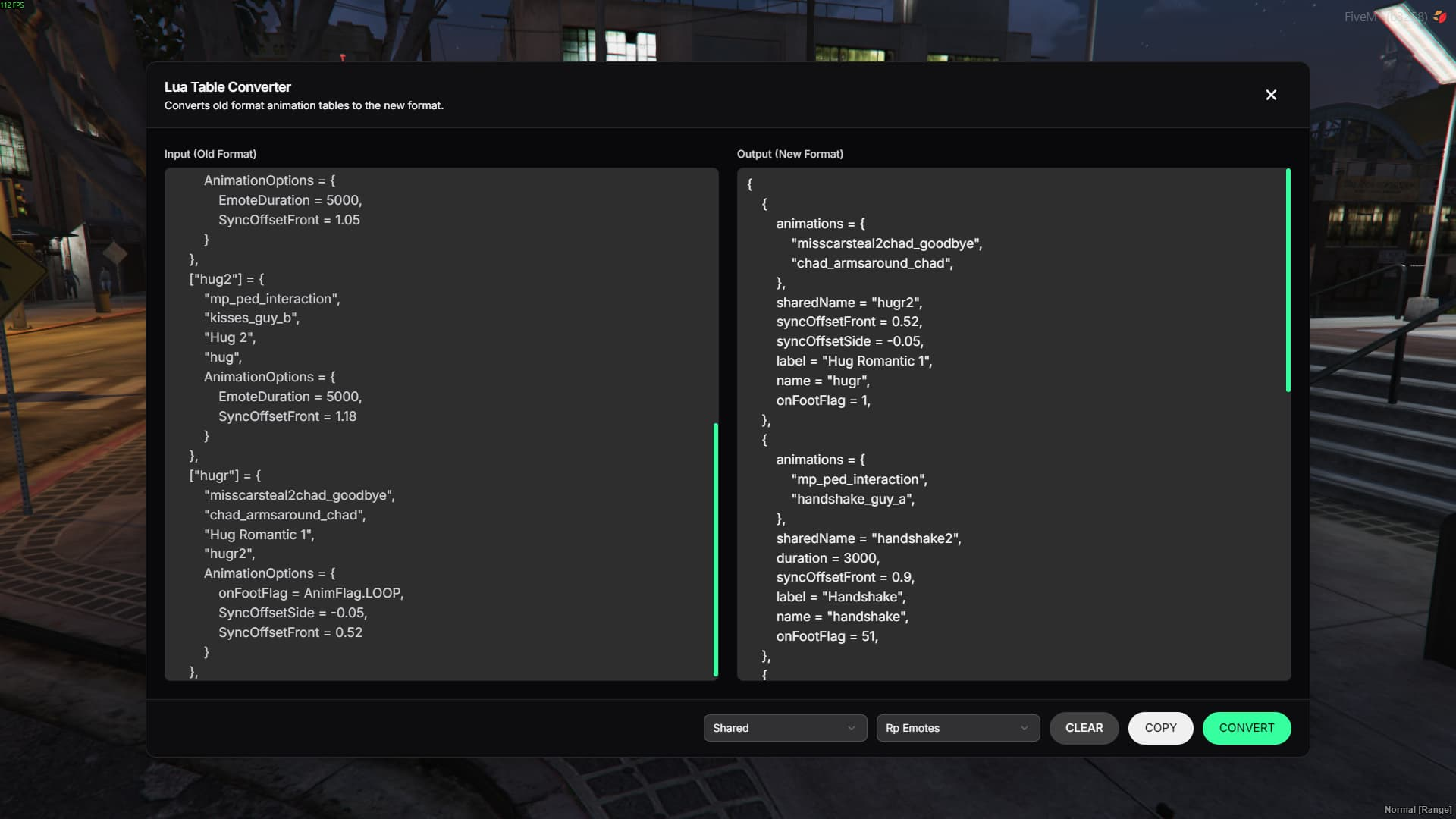
- Use the /animconvert command to easily convert animations from other animation menus directly through the UI.
- Simply paste your existing animations (in Lua format) from the old menu into the left panel, click Convert, and copy the newly generated format prepared specifically for tgiann-emotes to use in your config files.
- You can convert a single animation or bulk-convert all animations at once, depending on your needs.
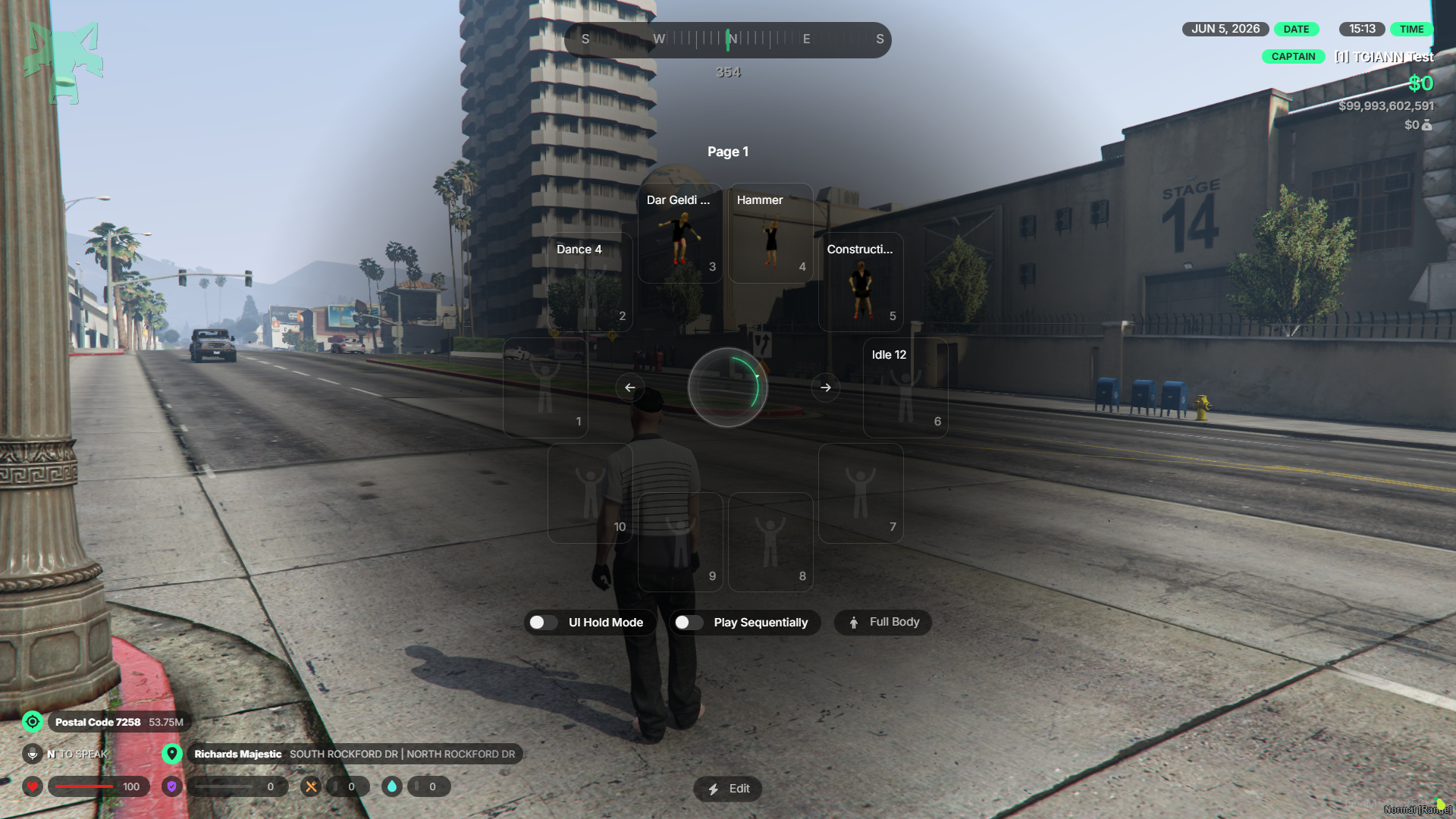
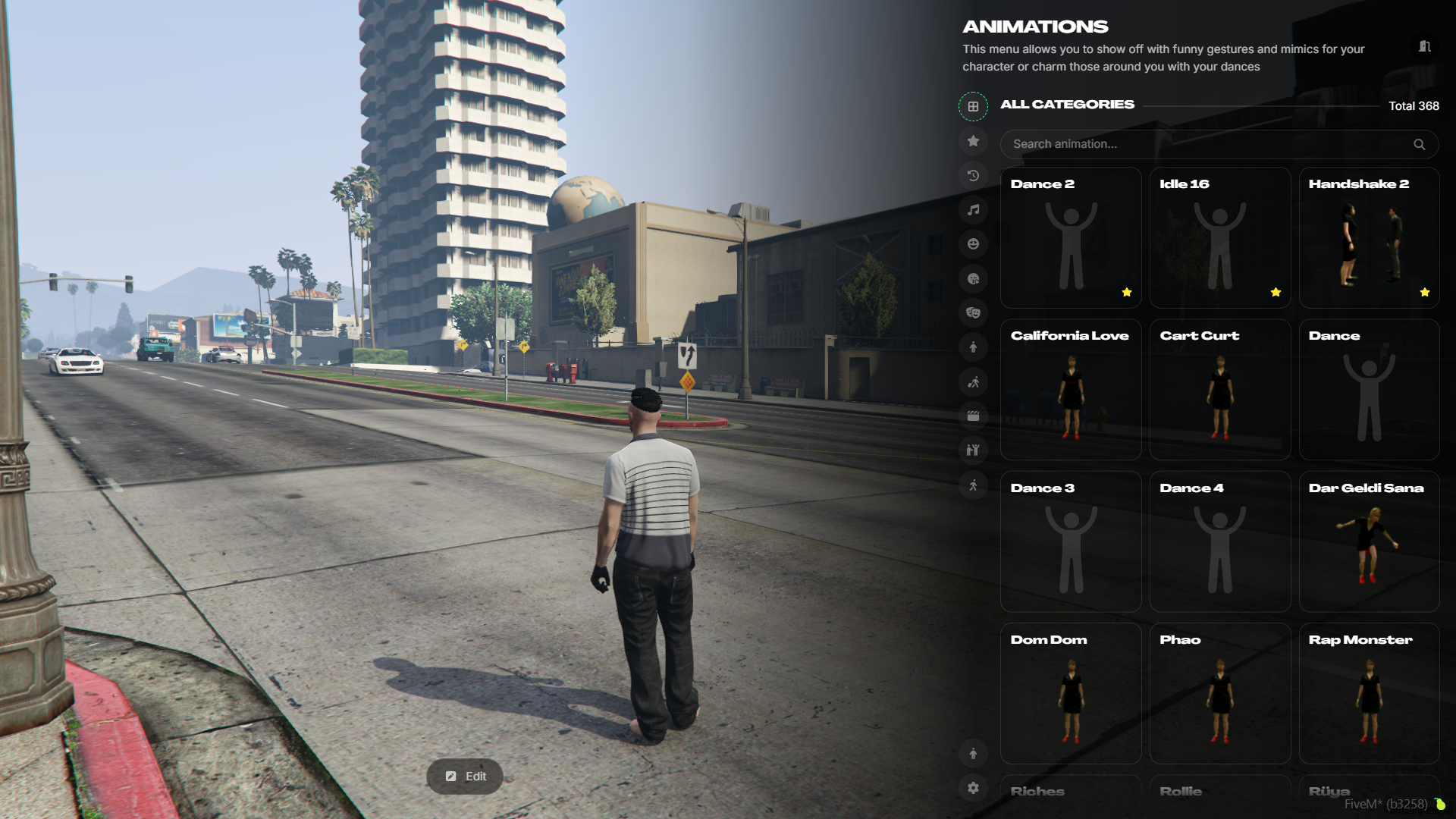
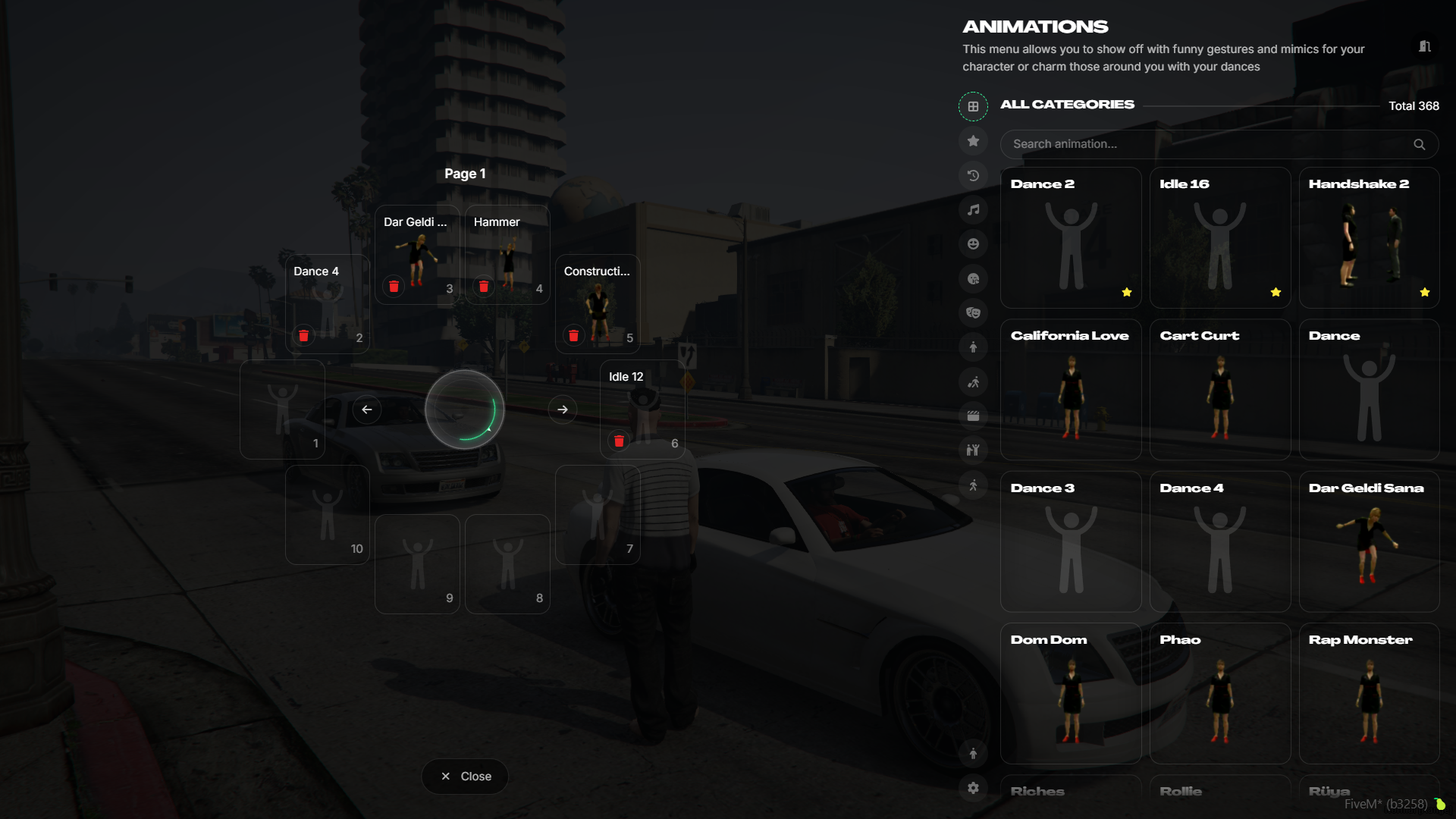
Two Different UI Designs
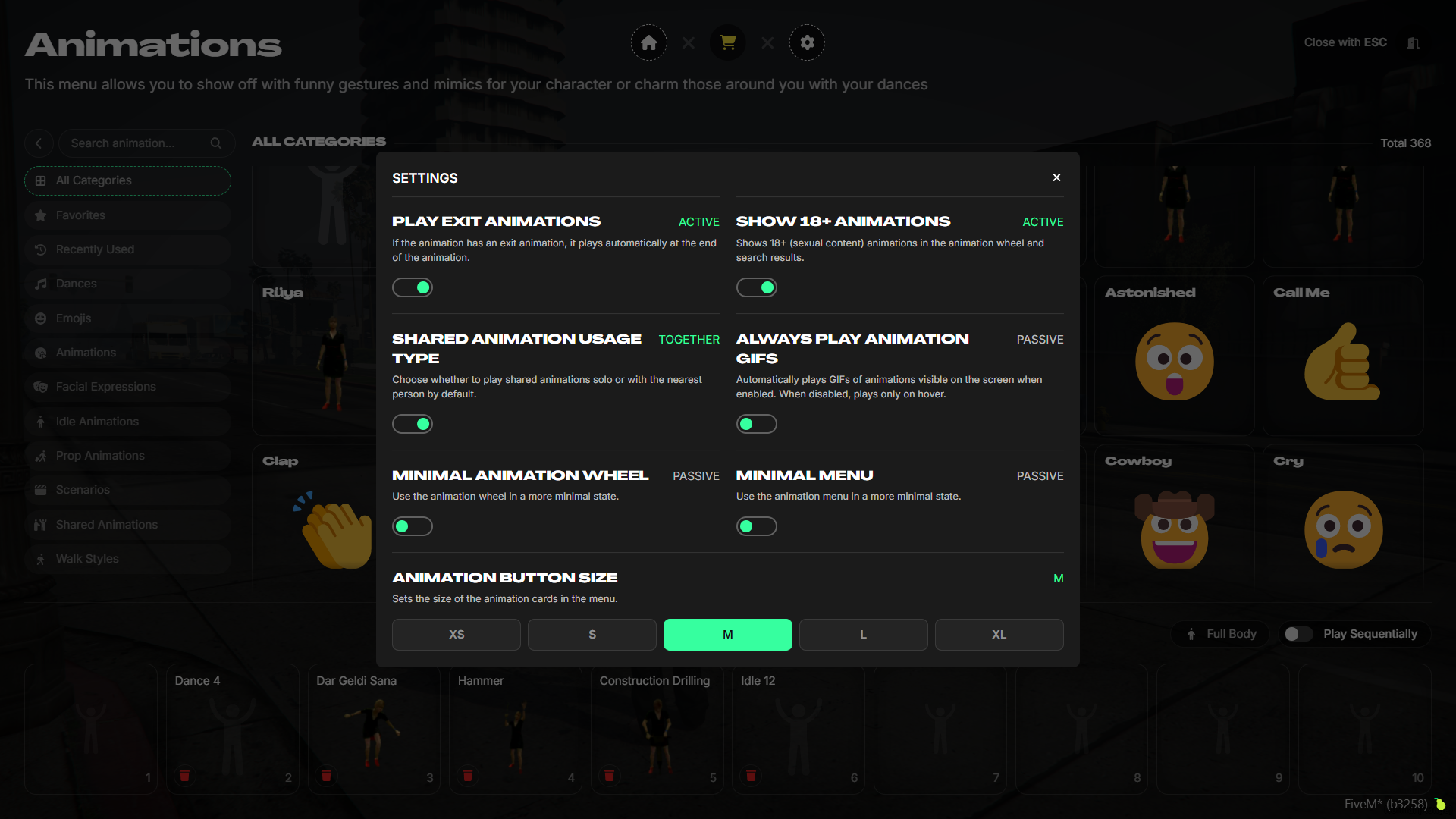
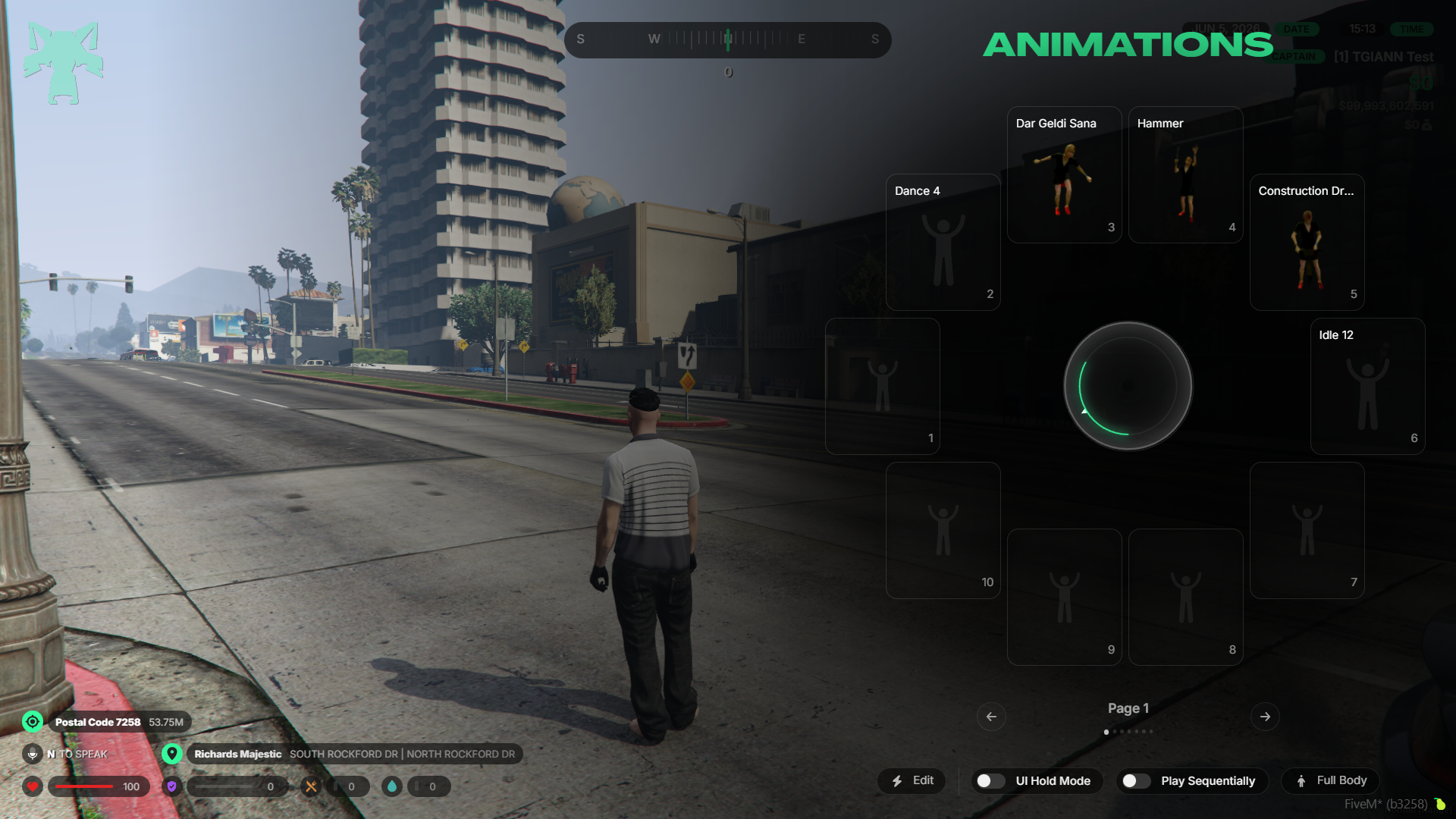
- The script includes two different UI designs for both the Emote Wheel and the Main Menu.
- One design uses a full-screen layout, while the other offers a minimal UI for a cleaner experience.
- Players can switch between these UI styles at any time from the settings menu.
- Each UI design also comes with its own separate settings, allowing further personalization.
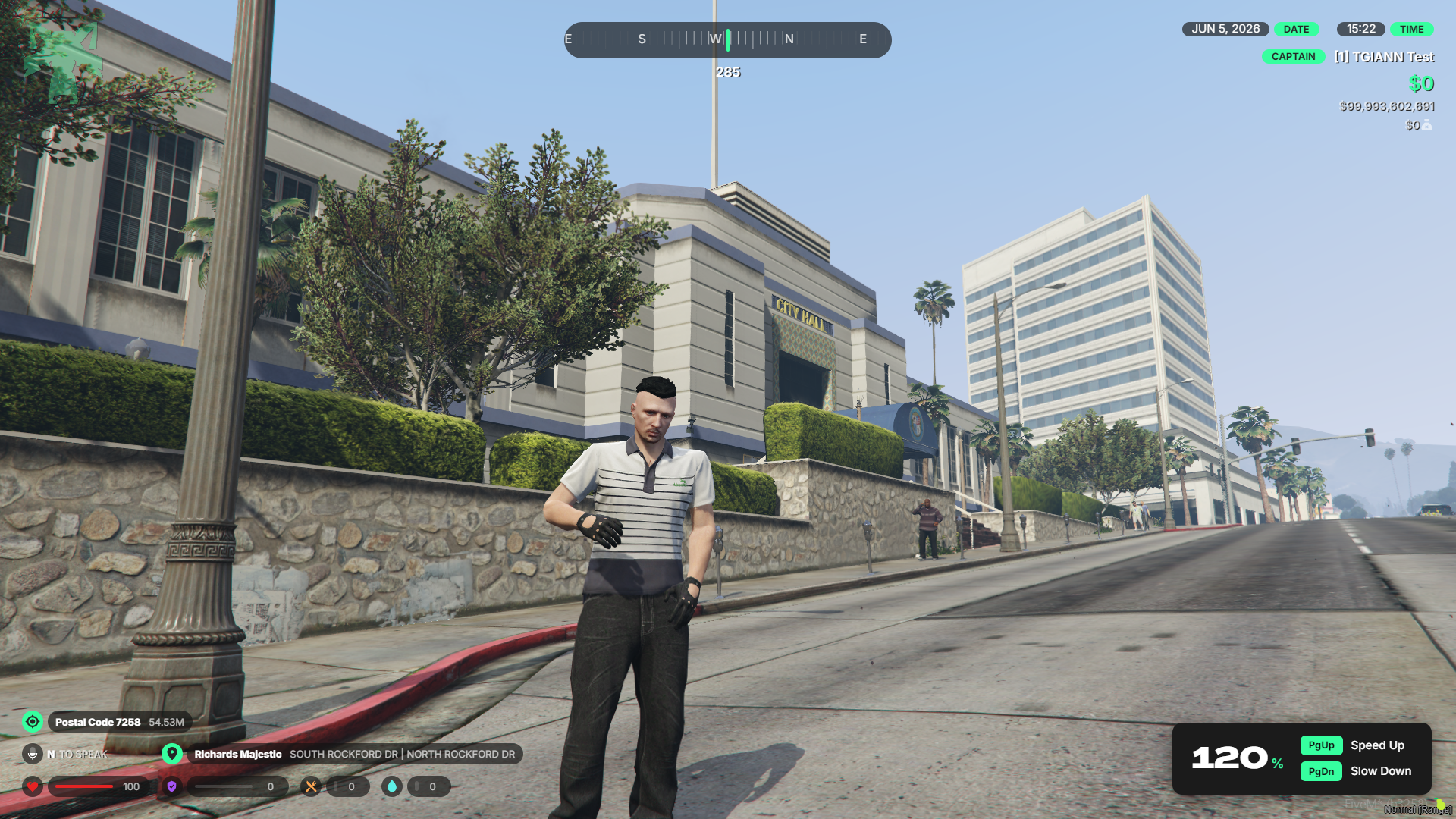
Animation Speed
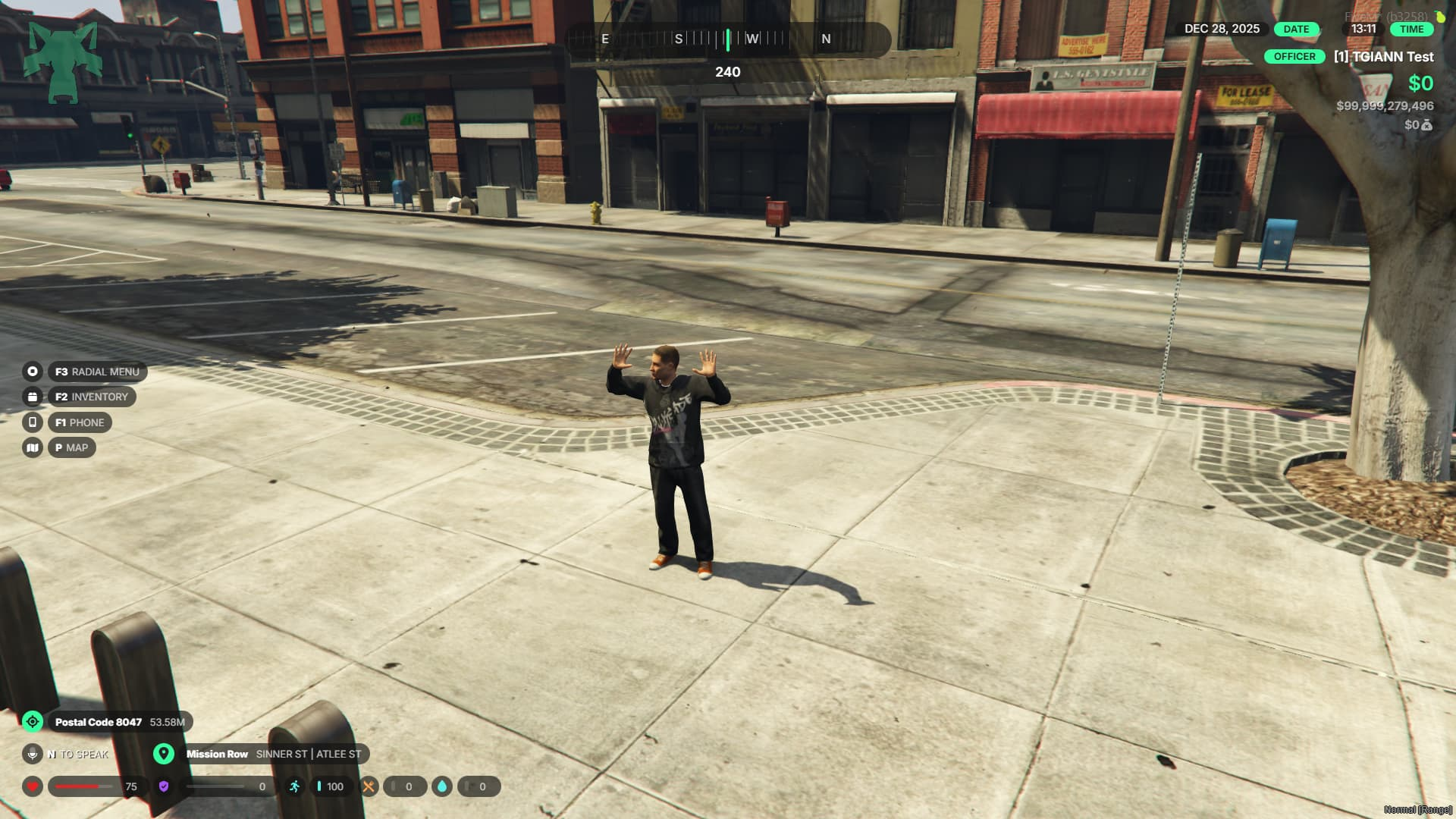
Playback Speed Control: You can easily adjust the playback speed of your selected animations on the fly by using the Page Up and Page Down keys.
Body Selection for Animations
Targeted Playback: You can choose to play animations using the entire full body or restrict them exclusively to the upper body.
Enhanced Control: This feature gives you precise control, allowing you to seamlessly apply specific animations or gestures to just the upper torso without affecting the character's lower body movement.
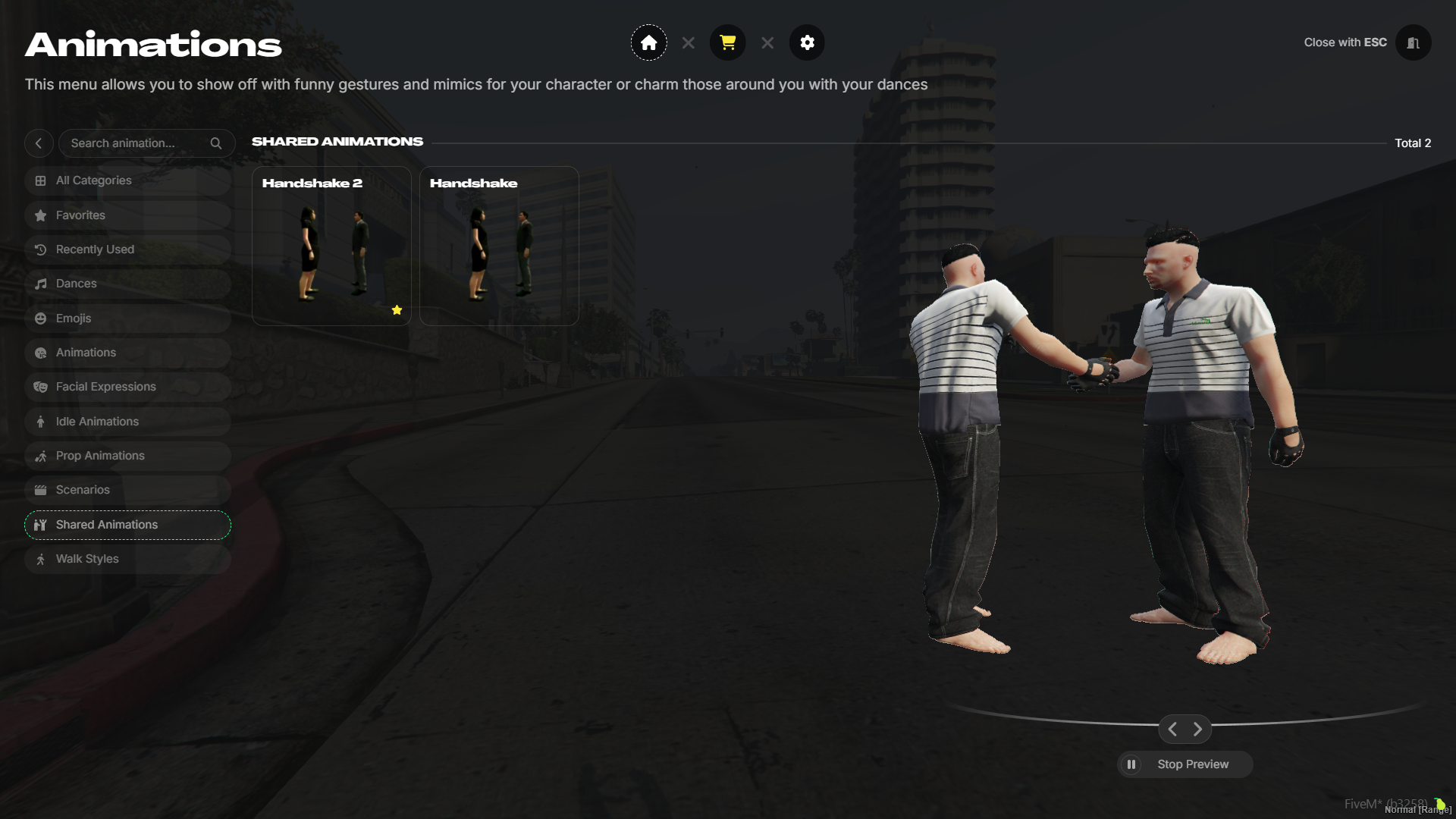
Preview & Test System
- Animations can be previewed and tested directly from the UI, allowing players to see how an animation looks before actually using it in-game.
Animation Wheel
- Add your favorite animations to the Emote Wheel for quick and easy access.
- You can rename each wheel page to better organize your animations.
- Create an unlimited number of pages to group animations however you like.
- Use SHIFT + Numpad 0–9to instantly play animations from the active page.
- All keybinds can be customized via the config file or the FiveM keybinds menu.
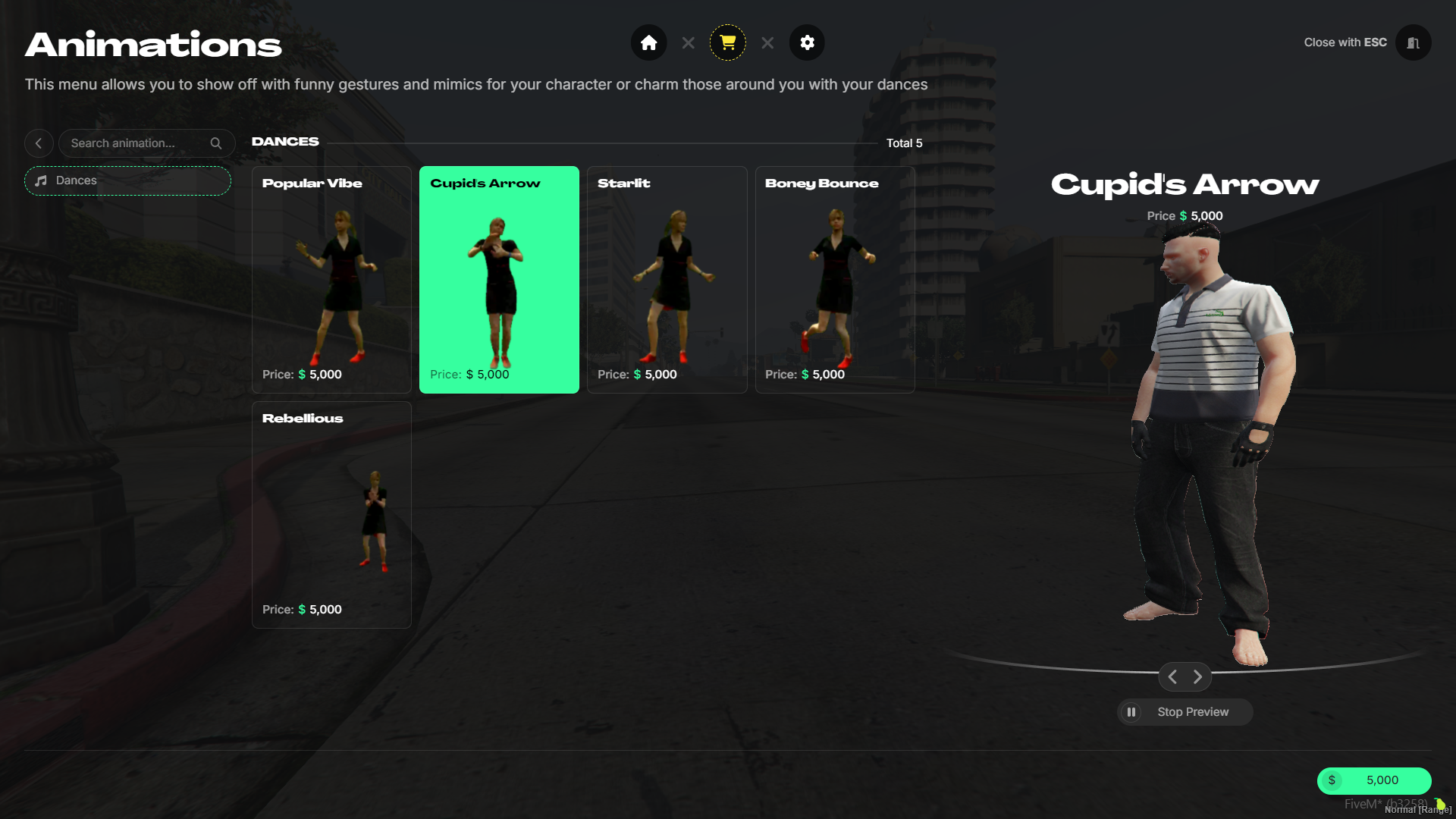
Shop System
- You can choose to sell specific animations using any in-game currency on your server.
- When a player purchases an animation from the shop, it is automatically added to their main animation list and can be used at any time.
- This system is optional—you can add all animations to the default list and allow players to use them without purchasing.
Shared Animations & Synchronized Dance System
- Play any animation together with nearby players.
- Shared animations can also be played solo if desired (only the Player 1 animation is used).
- When using the Play Together option for dances, any associated music is played synchronously, allowing other players to join the dance in perfect sync.
Emoji, Hands Up, Ragdoll & Pointing Features
- When you use an emoji, it appears above your character and is visible to other players.
- Press M (default) to make your character fall to the ground (ragdoll mode).
- Use B (default) to point in a direction with your finger.
- Press X (default) to raise your hands.
All default keys can be adjusted if needed, keeping controls flexible and intuitive.
Sequential Animation Mode
- This mode allows animations in the Emote Wheel to be played one after another automatically.
- While the mode is active, you can set how many seconds each animation should play before switching to the next one.
- Once an emote is triggered from the Emote Wheel, the following animations continue to play automatically after the defined intervals.
- The sequence runs continuously until the player manually cancels it.
Exit Animations
- You can assign an exit animation to any animation.
- When the main animation is canceled, the assigned exit animation is played automatically.
- Example: If you set a standing-up animation as the exit animation for a sitting emote, canceling the sit animation will smoothly play the stand-up animation.
Idle Animations
- When your character remains idle for a certain amount of time, the selected idle animation is played automatically.
- As soon as the player starts moving, the idle animation is automatically canceled, ensuring smooth and natural transitions.
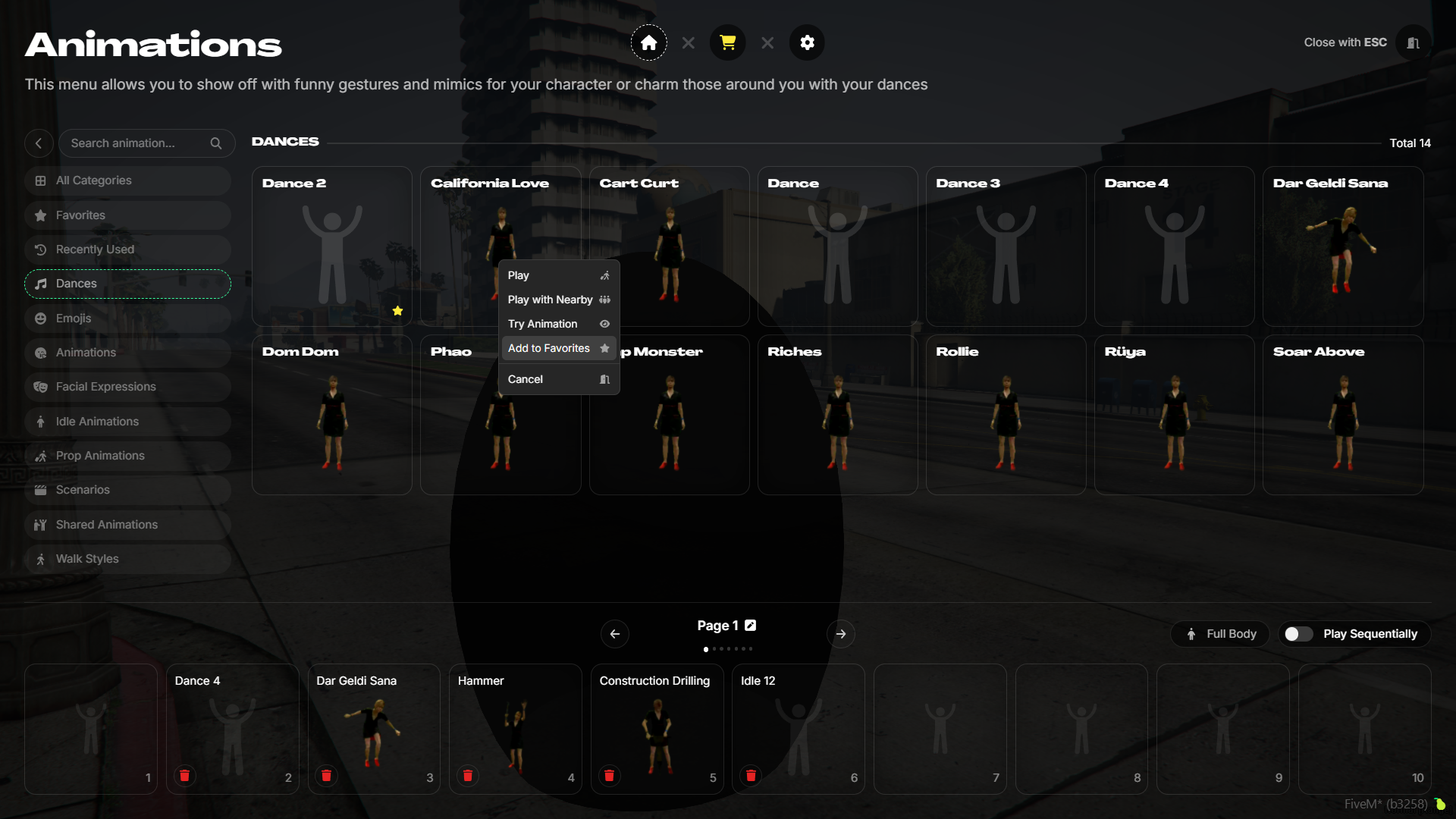
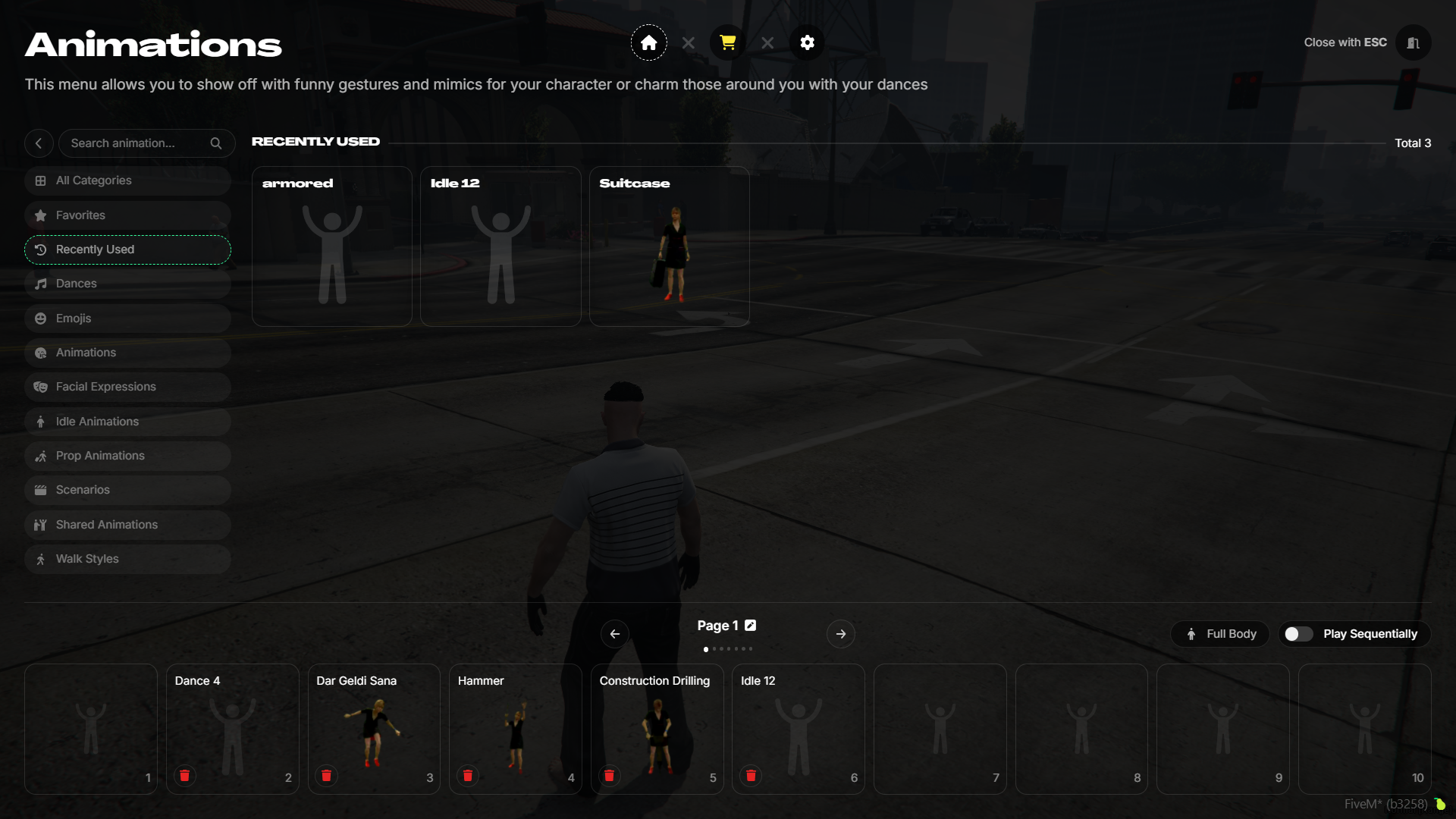
Favorites & Recently Used Animations
- Mark your favorite animations to access them quickly.
- Favorite animations appear at the top of their category and are also listed in a dedicated Favorites section.
- Easily replay your recently used animations from the Recently Used menu.
Automatic GIF Generation
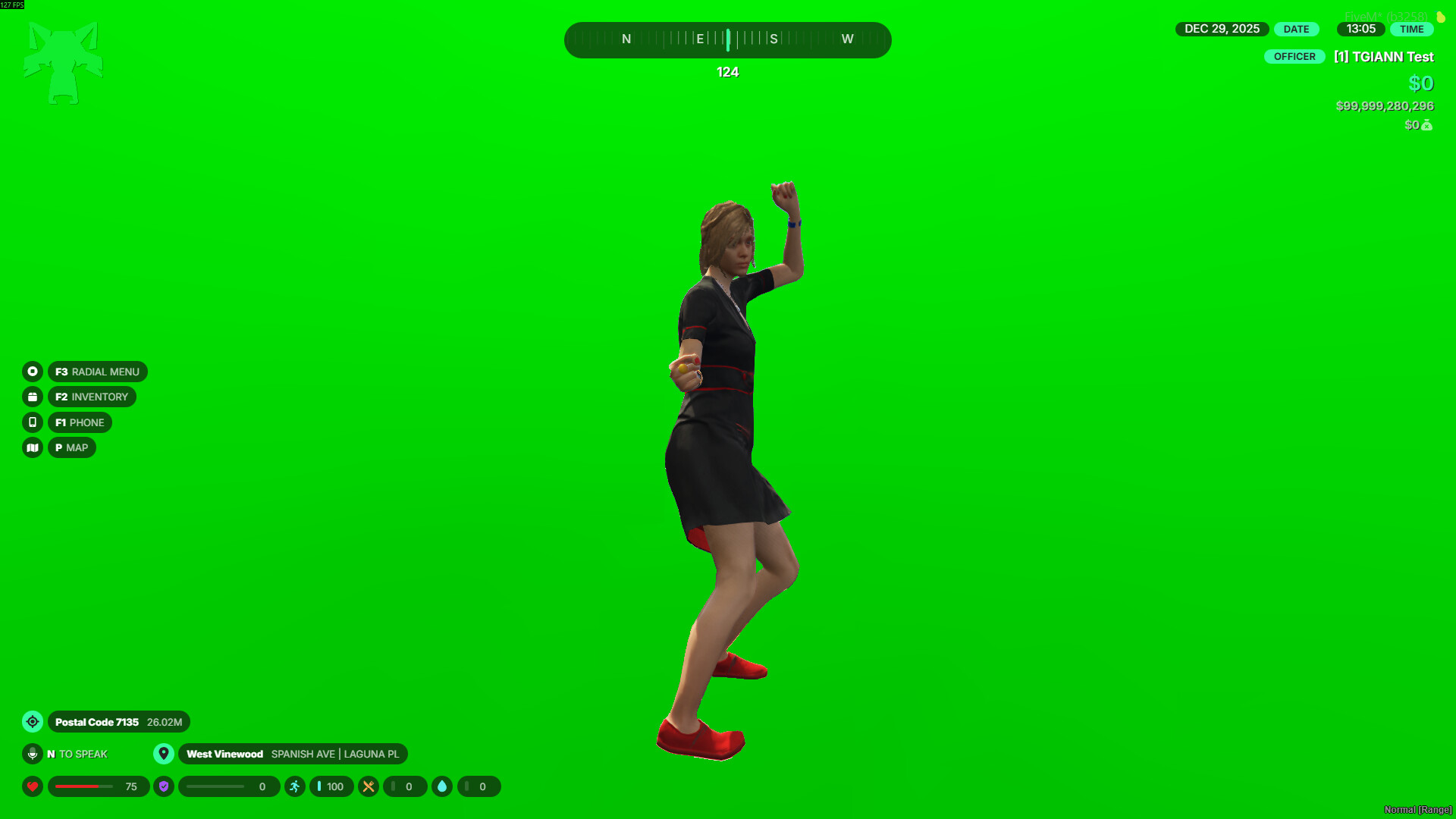
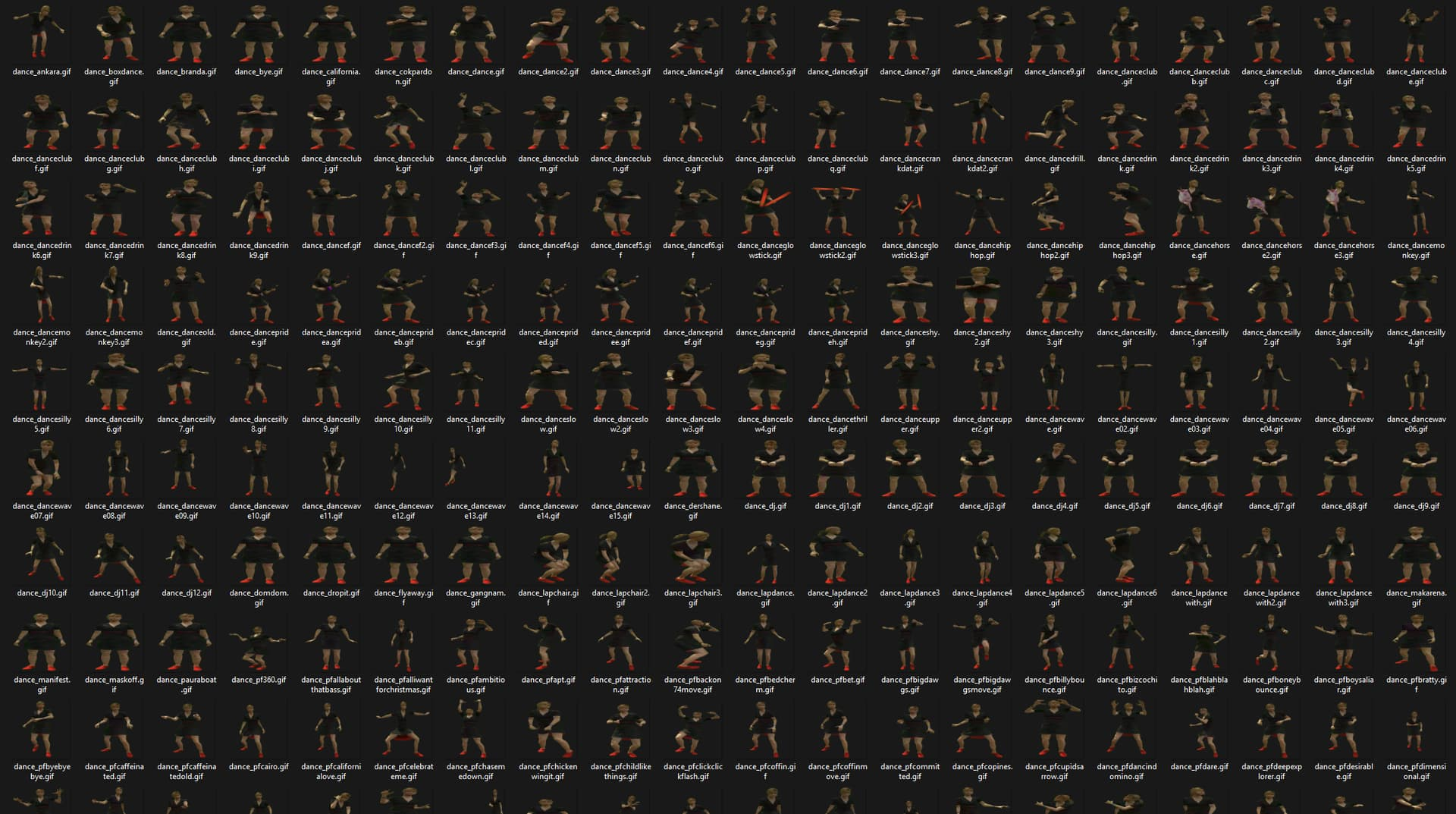
- Use the /animgif command to generate GIFs for a single animation or for all animations effortlessly.
- When the command is used, the character automatically plays the animation, a short video is recorded, and the video is then converted into a GIF and saved directly into the files.
Adult (+18) Animations
- Adult (+18) animations are NOT included by default in the script.
- Server owners may add adult animations manually and mark them as adult.
- Animations marked as adult are hidden from the UI by default.
- Players can only see adult animations if they explicitly enable “Show Adult Animations” in the settings menu.
- Server owners can disable adult animations at any time via the config file.
Requirements
- tgiann-core (free)
- ox_lib